Rules Suite
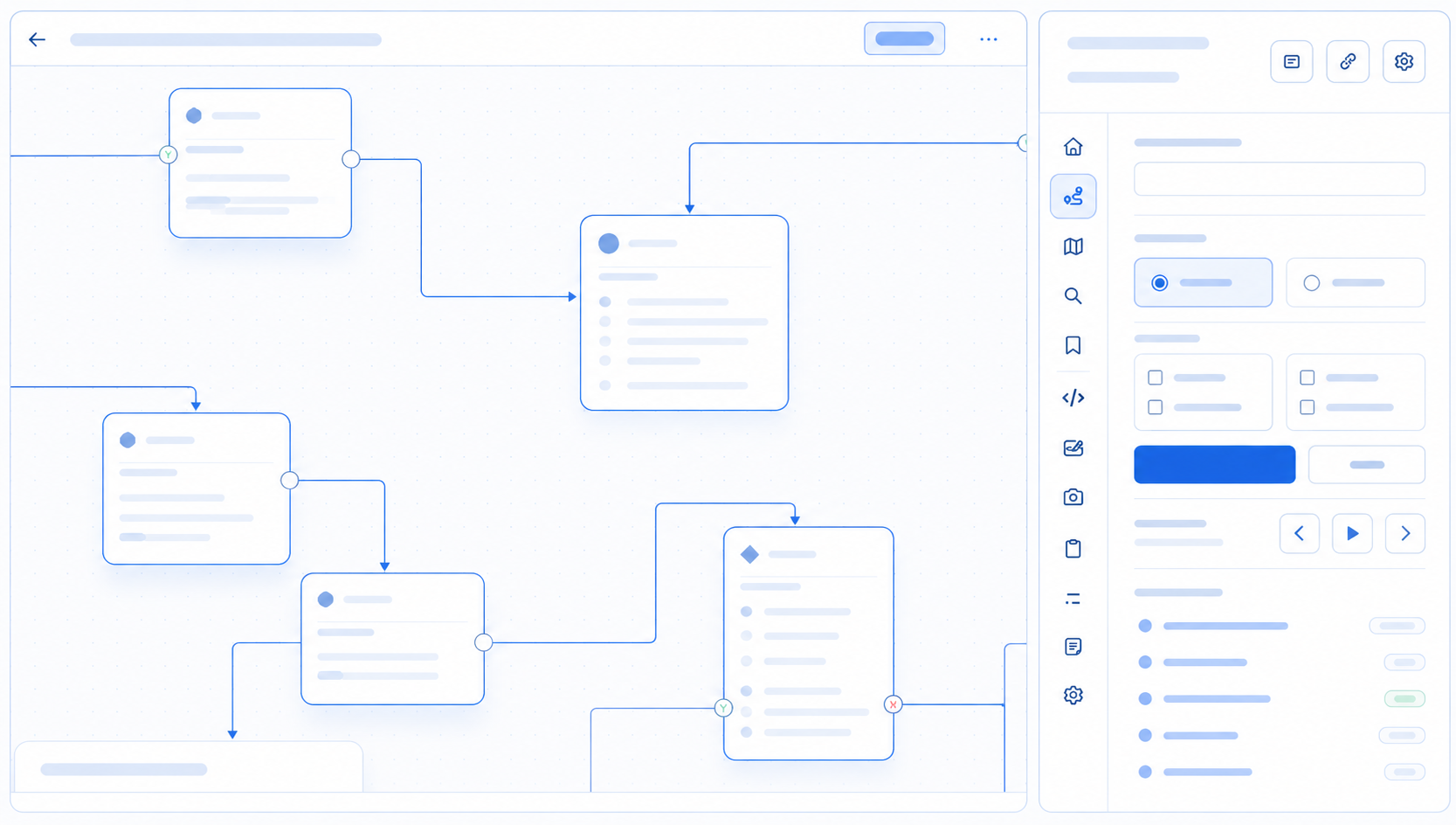
Understand any rule at a glance. Trace it, map it, compare it, and move around it.
40 capabilities in this suite
Feature reference
Learn how to inspect rules, search complex pages, capture review context, and keep your everyday tools close to the work.
25+ features offering 110+ capabilities. Each is documented with what it does, how to open it, and its options when they matter.
Overview
Everything Sidekick offers, in five suites. Pick any feature to jump straight to its guide. The Rules Suite comes alive on a supported SPR rule canvas; everything else works across everyday pages where access is allowed.
Understand any rule at a glance. Trace it, map it, compare it, and move around it.
40 capabilities in this suite
Find anything on the page, even content within nodes.
7 capabilities in this suite
Open Sidekick your way: Spotlight, floating toolbar, side panel, or a shortcut.
15 capabilities in this suite
Notes, snippets, clipboard history, links, and quick capture, always beside the work.
38 capabilities in this suite
A new tab that greets you with your links, notes, and the work you left off.
14 capabilities in this suite
Getting started
In Preferences → Default View Mode, pick Side Panel, Popup, or Floating Mode (labeled Floating).
In Preferences → Platform, enable helpers you need: Rule View Finder, Rule Nav, tab names, text selection, clipboard capture, or Smart Snippets.
Grant page access so search, highlighting, screenshots, and rule tools can run on the current page.
Finish setup. Change any choice later in Preferences.
The setup guide opens automatically. Reopen this feature reference anytime from Preferences → Other Settings → About.
Pin SPR Sidekick to the browser toolbar. After an update, refresh pages that were already open before using page-level tools. About shows product details and a link back to this guide.
Using Sidekick
Main workspace entry for Rule Preview, Rule Map, Rule Compare, Universal Search, and common utilities. Press and hold any tool to customize Home in place.
Primary navigation rail for core tools, with expandable shortcuts to utilities.
Sidekick keeps working with the page it was opened for, even when focus is in the extension UI.
Rule Preview, Rule Map, and Rule Compare stay visible but disabled until a supported SPR rule canvas is open and ready.
Rules Suite
The rule tools below require a supported SPR rule canvas and page access; the page helpers at the end of this suite only need page access.
Traces a backend execution path across the visible SPR rule canvas.
1,1,2,2,1, then Scan and Trace.Compact overview of the loaded rule canvas with the current viewport marked.
Read-only, automatically organized layout of the loaded rule, opened from Rule Map without changing the source canvas.
Identify and follow connectors on the native rule canvas: hover to see a connector's relationship, pin it, and jump to either endpoint.
Reviews configuration, readable nested text, and path changes between two rule versions kept open in different browser tabs.
Lightweight mini-map that stays over a supported rule canvas so you can navigate without leaving your work.
Enable these in Preferences → Platform. Once enabled, they keep working as supported page content changes or loads without a full refresh.
Makes text easier to select on rule cards and Audit Log widgets.
Show rule, dialogue tree, and reporting dashboard names as browser tab titles.
Search Suite
Universal Search scans the active regular web page and supported scrollable lists for dynamically rendered content that ordinary browser Find may miss. A search may briefly scroll the page or use Auto Load to reveal supported content.
Search features need page access. Deep Search also needs Node Coverage and a Deep Search URL Path under Preferences → Deep Search Settings.
Search the active regular web page, including dynamically loaded content; open a result to return to it.
Mark all available matches on the page, then clear highlights when finished.
Limit search to a page area you choose. Sidekick remembers that area for the site until you change or clear it.
Let Universal Search load additional supported content while scanning so you open or scroll fewer items manually.
Include supported unopened node details by requesting configured resources from the current site.
Under Preferences → Deep Search Settings, choose at least one Node Coverage source and enter the Deep Search URL Path from your team. If either is missing, Sidekick prompts before running Deep Search.
Use the internal content path supplied by your team. The path is masked by default, and Sidekick asks for confirmation before revealing it.
Unopened node details show a source badge and context snippet. If Sidekick cannot open a hidden result directly, it explains the available fallback.
When enabled and configured, Deep Search makes authenticated same-origin requests to the configured resource path on the current site. Your browser may attach its existing signed-in session; Sidekick does not read or store session credentials. Responses are processed locally, with no third-party analytics or telemetry.
Page results come from content Sidekick can read on the current page. When enabled, Deep Search can add only node details available through the configured Deep Search URL Path. If content is available in neither place, it cannot appear in the results. Recent results restore only for the page where the search ran.
Workspace Suite
Set the default in Preferences → Default View Mode: Side Panel, Popup, or Floating Mode (labeled Floating).
Docks Sidekick beside the page for longer sessions without covering the content you are inspecting.
Compact workspace from the extension button for quick checks and short tasks.
Movable launcher on accessible pages. Expand into a resizable panel, pin, minimize, or switch to Popup / Side Panel.
Shows or hides the in-extension quick navigation rail, and sets its position, from Home's customize bar.
Keyboard overlay to search tools, actions, Smart Snippets, Workspace Links, and open browser tabs.
Find an open browser tab by its page title or address without leaving the page you are working on.
Click on a tab result to switch directly to that browser tab, either through Tab Search results or the Open Tabs filter.
Sidekick remembers the active tool for the page you opened it on, and recent Universal Search results can restore on that same page. Rule Preview keeps one active trace and Rule Map keeps one active map. Rule Compare shares its temporary Source and Target captures across Sidekick surfaces for the browser session.
Productivity Suite
Notes, snippets, clipboard history, and link folder references stay in this browser profile. Capture and canvas overlays need page access.
Browse and open links from a connected Sidekick bookmarks folder. Initial connection may inspect the bookmark folder tree to locate it; afterward Sidekick uses that folder and its subfolders.
Recently Copied Items — review and reuse text (and screenshots) Sidekick has saved locally.
Save reusable text and insert or copy it with a short /shorthand trigger.
/shorthand + Space or Tab inserts at the cursor in supported inputs and editors.//shorthand + Space or Tab copies without inserting.Persistent rich-text notepad beside your work.
Large local editor over the page to format and validate JSON, clean and transform plain text, or compare changes.
Freeform overlay for drawing, shapes, text, selection, move/edit, zoom, and pan.
Capture the visible page without Sidekick floating controls, then crop or annotate it with rectangles, arrows, and text.
Enable these in Preferences → Platform. They work on any allowed page and keep working as content changes or loads without a full refresh. Clipboard history and snippets stay local to this browser profile.
Observes copy events on allowed pages only while capture is enabled and saves permitted text into Clipboard Manager. It does not continuously poll the clipboard. Add current clipboard performs an explicit system clipboard read.
Type /shorthand and press Space or Tab to expand, or //shorthand to copy without inserting.
Show readable timestamps beside likely epoch values, including ones that appear after load and ones inside code or API responses. Select any text containing a value to convert it on the spot. Badges never enter copied text; each carries its own copy icon for the date.
Use browser find (⌘F / Ctrl+F) instead of page-specific search on supported pages.
Atlas Suite
Atlas is an optional companion extension that turns the browser new tab into a Sidekick workspace. Your links, clipboard, snippets, notes, and recent work greet you on every new tab.
Install from Preferences → Other Settings → Atlas new tabs. Turning Atlas off or removing the companion restores the browser's normal new tab; nothing else changes.
Optional companion extension that turns the browser new tab into a Sidekick workspace. When Atlas is off or not installed, the browser's normal new tab is untouched.
Resume tiles on the Atlas new tab: reopen Rule Preview, Rule Map, Rule Compare, or Universal Search on the right tab, or return to a tracked page.
Search from the Atlas new tab: web, Google, Knowledge Base, or a direct address, plus Sidekick actions and open tabs.
/ on the new tab to focus search; Enter runs the selected result.Continue tiles come from locally tracked visits and contextual activity described under Access & privacy. Everything stays in this browser profile and is cleared by Cache → Clear.
Preferences
Open Preferences from the gear icon or Home. All settings are stored locally in the current browser profile.
Choose how Sidekick opens: Side Panel, Popup, or Floating Mode (labeled Floating in Preferences).
Sidekick Spotlight, Sidekick Atlas, Graphite mode and Intensity (Solid / Soft / Sheer), Floating pane size, Header logo (none or a bundled preset). Home layout and the quick menu are set on Home itself.
Text selection, Page-aware tab names, Rule View Finder, Rule Nav, Epoch time converter, Browser Find, Clipboard capture, and Smart Snippets.
Node Coverage (DT, GW, JF, IVR) and Deep Search URL Path for unopened node details.
View assigned shortcuts and open Chrome’s shortcut manager.
Connect the Sidekick bookmarks folder and open Bookmark Manager to organize links.
Open side panel, Cache Clear, Site access, Screen Capture discard confirmations, About, and Hide info icons.
Clears clipboard history, screenshots, recent searches, viewer drafts, and temporary traces. Does not change preferences, Quick Notes, Smart Snippets, or Workspace Links.
Under Other Settings. Opens guide, product details, and feedback.
Keyboard shortcuts
All shortcuts are customizable. These combinations are set by default.
Clipboard Manager · Workspace Links · Code / JSON Viewer · Screen Capture · Preferences
CustomizePreferences → Shortcuts → Manage Shortcuts
Manage Shortcuts opens chrome://extensions/shortcuts in Chromium-based browsers.
Access and privacy
Sidekick asks for page access after a user action. Access enables search, highlighting, screenshots, rule helpers, and optional clipboard capture. Manage it under Preferences → Other Settings → Site access.
Workspace Links requests bookmark access only when you connect it. Initial discovery may inspect the bookmark folder tree to locate Sidekick; afterward it reads the selected Sidekick folder and its subfolders, and changes bookmarks only after your action.
Notes, snippets, preferences, recent clipboard items, and temporary working state stay in the current browser profile. Rule Map data and full Rule Compare working data stay in memory; only compact Rule Compare references and fingerprints use browser session storage.
Sidekick reads and highlights supported page content. It does not execute rule actions, submit forms, change or publish rules, inspect network traffic generally, or require a rule export.
Deep Search is the only feature that intentionally requests application resources. When enabled and configured, it makes authenticated same-origin requests to the current site. No page, clipboard, note, or search data is sent to third-party services, and Sidekick has no analytics or telemetry endpoint.
Sidekick reads the system clipboard only when you choose Add current clipboard. It creates an image file only when you choose Download in Screen Capture or Quick Canvas.
The Deep Search URL Path is masked by default. Sidekick asks before revealing it.
Required permissions support the core workspace. Bookmarks and broad site access remain optional and user-controlled.
How local Sidekick data is retained, limited, and cleared.
Notes, snippets, Workspace Links, preferences, and site settings remain.
Common workflows
Supported rule canvas → Rule Preview → Scan → enter path → Native or Highlight → Trace → Step playback or summary jump.
Universal Search → optional Scroll Scope area → Deep Search / Auto Load if needed → keyword → review page and hidden-node results → Highlight all matches.
Preferences → Deep Search Settings → Node Coverage (DT, GW, JF, IVR) → Deep Search URL Path → Universal Search → enable Deep Search.
Screen Capture → annotate → copy or download.
Clipboard Manager → Add current clipboard → item appears under Recently Copied Items (Clipboard capture must be on).
Smart Snippets → add shorthand + expansion → enable → /shorthand + Space/Tab to insert, or //shorthand to copy.
Workspace Links → connect bookmarks → existing or new Sidekick folder → organize in Bookmark Manager → open from Sidekick or Spotlight.
Rule Map → View Structured Layout → zoom or fit → focus nodes and pin connectors → the source rule stays untouched. If a source-changed notice appears, exit and refresh Rule Map.
Preferences → Platform → enable Rule Nav → hover a connector to identify it → click to pin → jump to source or destination → double-click to animate the flow.
Atlas new tab → Continue → pick a Work or Recent tile → Sidekick reopens the tool on the right tab, or returns you to a tracked page.
What's new
SPR Sidekick goes live with 25 features across five suites, this searchable reference, and the launch game. Future updates will appear here.
Availability
| Feature | Supported rule canvas | General web page | Works without page access |
|---|---|---|---|
| Rule Preview, Rule Map, Structured View, Rule Compare, Rule Nav & Rule View Finder | Yes | — | — |
| Sidekick Atlas (companion new tab) | — | — | Yes |
| Universal Search | Yes | Yes | — |
| Quick Notes & Workspace Links | Yes | Yes | Yes |
| Smart Snippets | Yes | Yes | Library only |
| Code / JSON, Canvas & Capture | Yes | Yes | Separate viewer where available |
Browser-internal pages, extension stores, and other protected pages may block in-page tools. Sidekick explains the limitation and uses a separate viewer when a fallback exists.
Chrome provides the full Side Panel experience. Browsers without a reliable Side Panel—including some Arc configurations—default to Popup. Floating Mode requires page access. Protected addresses may block all in-page tools.
Terminology
1,1,2,2,1) used by Rule Preview./shorthand or copied with //shorthand.Troubleshooting
Open a supported SPR rule canvas and wait for it to finish loading. Rule tools stay visible but disabled until a compatible canvas is detected.
Use the access action Sidekick shows, or review site access in Preferences. Protected browser pages cannot grant normal extension access.
Your browser may not support Chrome’s Side Panel reliably. Choose Popup or Floating Mode in Preferences → Default View Mode (option labeled Floating); Sidekick may offer this fallback automatically.
Temporary results are tied to the page where they were created and clean up when stale. Notes, snippets, and Workspace Links are unaffected.
Select at least one Node Coverage source and enter the Deep Search URL Path in Preferences → Deep Search Settings.
Page results depend on content Sidekick can read from the current page. Deep Search results depend on what is available through the configured Deep Search URL Path. If Deep Search cannot finish for an unusually large or unreadable flow, page matches remain available; try again, then contact support if it continues.
The page structure may have changed. Choose the area again, or clear Scroll Scope to scan the full page.
Confirm Clipboard capture is enabled under Preferences → Platform. Use Add current clipboard to pull the system clipboard into history. Some browsers or protected pages block clipboard reading.
Confirm Smart Snippets is enabled under Preferences → Platform, the shorthand exists, and you pressed Space or Tab. Password, sensitive, unsupported, read-only, and disabled fields are skipped.
Confirm Preferences → Default View Mode is set to Floating and the site has access. Protected browser pages cannot show Floating Mode.